IPTV Playlist on iPhone and iPad: Complete iOS Setup Guide 2026
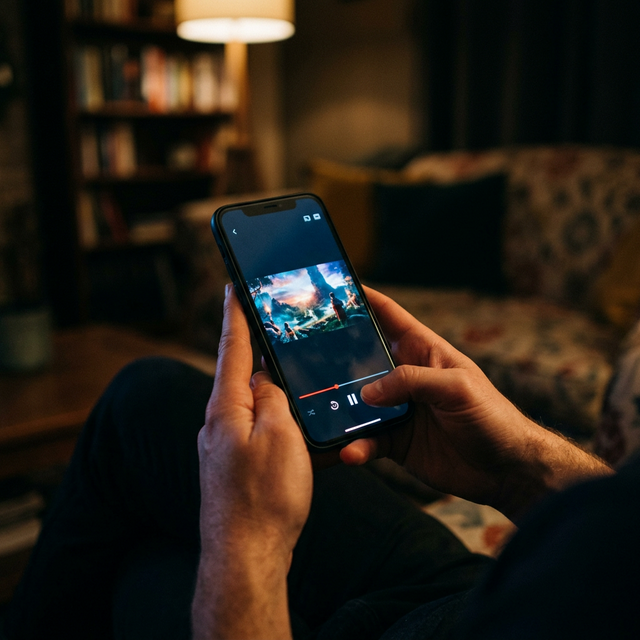
Apple's iPhone and iPad are powerful streaming devices that work brilliantly for IPTV playlist viewing, yet many users assume IPTV is only for Android devices and Firesticks. In 2026, several excellent IPTV apps are available on the iOS App Store that make loading and watching an IPTV playlist on iPhone and iPad as simple as any other streaming app. Whether you want to watch live TV during your commute, follow a match while away from home, or use your iPad as a secondary screen in the kitchen, this guide covers everything you need to know.
Setting up an IPTV playlist on iPhone and iPad requires choosing the right app from the App Store, entering your M3U playlist URL or Xtream Codes credentials, and configuring a few settings for the optimal viewing experience. The entire process takes under five minutes, and once set up, your entire IPTV channel lineup is available wherever you take your Apple device.
Best IPTV Apps for iPhone and iPad in 2026
Unlike Android, where dozens of IPTV apps are freely available, Apple's stricter App Store policies mean fewer options but generally higher quality apps. Here are the best IPTV apps for iOS that support M3U playlists and deliver excellent viewing experiences on iPhone and iPad.
- GSE Smart IPTV: The most popular IPTV app on iOS with full M3U and Xtream Codes support, EPG integration, favorites, and a clean interface. Free with optional premium upgrade.
- IPTVX: A modern, well-designed iOS IPTV player with M3U support, EPG, channel grouping, and iCloud sync across Apple devices.
- Xtream IPTV Player: Specifically designed for Xtream Codes connections with automatic category organization and EPG. Also supports M3U playlists.
- nPlayer: Primarily a video player but supports M3U playlists with excellent codec support and AirPlay integration for streaming to Apple TV.
- OPlayer: Another versatile media player with M3U playlist support, hardware acceleration, and picture-in-picture support on iPad.
Setting Up GSE Smart IPTV on iPhone and iPad
GSE Smart IPTV is our recommended app for IPTV playlist on iPhone and iPad because of its comprehensive feature set and reliability. Download GSE Smart IPTV from the App Store for free. Open the app and tap the hamburger menu icon in the top left corner. Select Remote Playlists, then tap the plus icon to add a new playlist. Enter a name for your playlist such as IPTVPlaylist and paste your M3U URL into the URL field. Tap Add and the app will begin downloading and parsing your playlist.
For a large playlist like IPTVPlaylist's 29,500 plus channels, the initial download takes 1 to 2 minutes on a good connection. Once loaded, channels appear organized by the groups defined in the M3U file. Tap any group to see its channels, and tap any channel to start watching. The app supports both landscape and portrait viewing modes, with landscape being preferable for full-screen viewing on iPad.
Using Xtream Codes on iPhone and iPad
If your IPTV provider offers Xtream Codes connections, which IPTVPlaylist does, using this method on iOS provides several advantages over M3U. In GSE Smart IPTV, select Xtream Codes API instead of Remote Playlists from the menu. Enter the server URL, your username, and your password. The app connects to the Xtream Codes server and automatically organizes channels into categories, loads EPG data, and provides access to VOD content if available.
The Xtream Codes method loads faster than M3U because the app requests channel data on demand rather than downloading the entire playlist at once. It also stays current automatically, reflecting any changes the provider makes to the channel lineup without you needing to refresh the playlist manually.
Picture-in-Picture: Watch While You Work
One of the best features of using an IPTV playlist on iPhone and iPad is picture-in-picture mode, which lets you watch live TV in a small floating window while using other apps. On iPad, this feature is particularly useful as the larger screen provides a comfortably sized video window alongside whatever else you are doing. Check emails while watching the news, browse the web while a match plays in the corner, or work in a document while keeping an eye on live coverage.
To activate picture-in-picture in GSE Smart IPTV on iPad, simply swipe up from the bottom of the screen or press the home button while a channel is playing. The video shrinks to a small window that you can drag to any corner of the screen. Pinch to resize the window. To return to full-screen, tap the picture-in-picture window and select the expand icon.
AirPlay: Stream from iPhone or iPad to Your TV
AirPlay bridges the gap between mobile IPTV viewing and big-screen entertainment. If you have an Apple TV or any AirPlay-compatible Smart TV, you can stream your IPTV playlist from your iPhone or iPad directly to the television. Open your IPTV app, start playing a channel, tap the AirPlay icon, and select your TV. The stream appears on the big screen while your Apple device acts as a remote control.
This AirPlay capability means you do not necessarily need a dedicated streaming device connected to your TV. Your iPhone or iPad can serve as the IPTV player, casting the video to your television wirelessly. The quality depends on your WiFi network speed, but on a modern WiFi 6 router, AirPlay delivers smooth HD and even 4K content to compatible TVs.
Optimizing IPTV Playback on iPhone and iPad
For the best IPTV playlist experience on iPhone and iPad, connect to a 5GHz WiFi network rather than 2.4GHz for higher throughput and lower latency. Close background apps that consume bandwidth or processing power. Enable Do Not Disturb mode to prevent calls and notifications from interrupting your viewing. If you experience buffering, try switching between the software and hardware decoder options in your IPTV app settings, as performance can vary depending on the stream codec and your device model.
For offline situations or areas with poor connectivity, some IPTV apps support downloading content to your device for later viewing, though this typically works only with VOD content rather than live channels. Check if your IPTV app and provider support this feature for train journeys, flights, or areas with unreliable internet.
iPad as a Dedicated IPTV Screen
Many IPTV users repurpose older iPads as dedicated IPTV screens in kitchens, bedrooms, or home offices. An iPad mounted on a stand with an IPTV app running provides a personal TV screen anywhere in the house. With IPTVPlaylist's multi-device support, this dedicated iPad can stream independently while other family members watch different channels on the main TV and other devices.
Get Your IPTV Playlist Running on iPhone and iPad Today
IPTVPlaylist works perfectly on all Apple devices with full M3U and Xtream Codes support. The 29,500 plus channel lineup, 4K streaming, comprehensive EPG data, and 99.9% uptime translate to an exceptional mobile viewing experience on iPhone and iPad. Every iOS IPTV app mentioned in this guide is fully compatible with IPTVPlaylist's service.
Try IPTVPlaylist free for 24 hours on your iPhone or iPad. Download your preferred iOS IPTV app, enter the trial credentials, and experience the full channel lineup on your Apple device. No credit card, no commitment. Contact the IPTVPlaylist team via WhatsApp at +1 (559) 508-2154 to get your free iOS trial started in minutes.
Ready to Start Streaming?
Get instant access to 20,000+ live channels, 4K streaming, and 80,000+ movies and series.
View Plans & Pricing