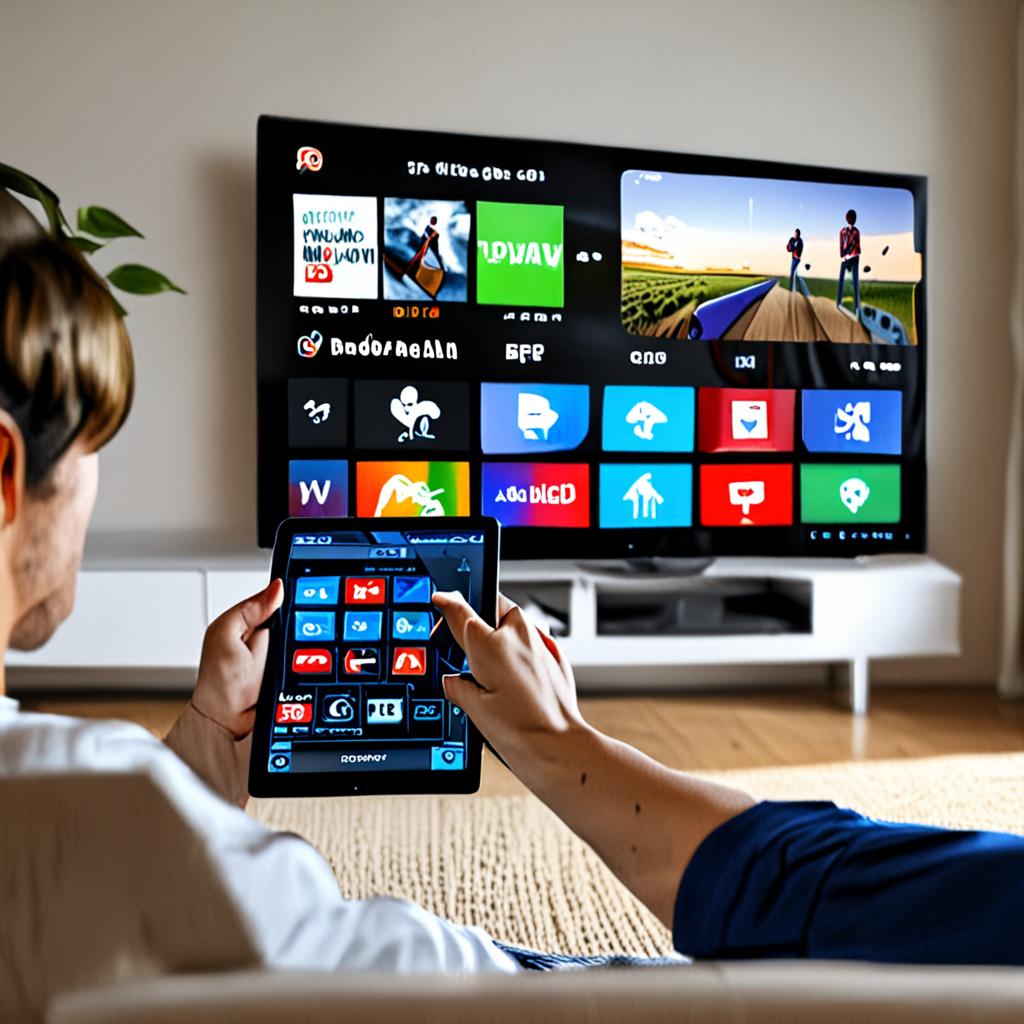
TiviMate Setup Guide: From Download to Watching in 10 Minutes
TiviMate has established itself as the gold standard IPTV player for Android-based devices. It combines a clean interface, fast channel switching, robust EPG support, and deep customization options that no other player matches in 2026. Whether you run it on an Amazon Firestick, Nvidia Shield, Android TV box, or Chromecast with Google TV, TiviMate consistently delivers the best viewing experience available.
This guide walks through the complete setup process from installation to watching your first channel. No steps skipped, no assumptions about prior knowledge. If you follow these instructions, you will have TiviMate fully configured with live channels, EPG data, and optimized playback settings within 10 minutes.
Prerequisites: What You Need Before Starting
Before installing TiviMate, confirm you have the following: an Android-based streaming device (Firestick, Nvidia Shield, Android TV box, Chromecast with Google TV, or Android phone/tablet), a stable internet connection with at least 25 Mbps download speed for HD streaming (50+ Mbps recommended for 4K), and active IPTV subscription credentials from your provider. IPTVPlaylist subscribers receive their credentials via email immediately after purchase. If you do not have a subscription yet, visit /pricing to get started.
You will also need your IPTV connection details in one of two formats: an M3U playlist URL, or Xtream Codes credentials (server URL, username, password). IPTVPlaylist provides both with every subscription. We recommend using Xtream Codes for TiviMate as it provides faster loading and better feature integration.
Step 1: Installing TiviMate on Your Device
The installation method depends on your device type. We cover the three most common scenarios below.
Installing on Amazon Firestick / Fire TV
Amazon does not list TiviMate in the Amazon Appstore, so you need to sideload it. First, enable installation from unknown sources: go to Settings, then My Fire TV, then Developer Options, and toggle on Install Unknown Apps. If you do not see Developer Options, go to Settings, My Fire TV, About, and click on the Fire TV device name seven times to enable developer mode.
Next, install the Downloader app from the Amazon Appstore. It is free and serves as your sideloading tool. Open Downloader, enter the TiviMate APK URL from the official TiviMate website (tivimate.com), and let it download. Once downloaded, the installer will prompt you to install. Accept the permissions and TiviMate will install in under a minute.
Alternatively, you can use adb (Android Debug Bridge) from a computer on the same network. Enable ADB debugging in Developer Options on the Firestick, then run adb connect [firestick-ip] followed by adb install tivimate.apk from your terminal. This method is faster if you already have adb configured.
Installing on Nvidia Shield / Android TV
TiviMate is available directly from the Google Play Store on Android TV devices. Open the Play Store, search for TiviMate IPTV Player, and install it. The process takes about 30 seconds. No sideloading required.
Installing on Android Phone or Tablet
Download TiviMate from the Google Play Store on your phone or tablet. Search for TiviMate IPTV Player, tap Install, and wait for it to finish. The mobile version shares the same core functionality as the TV version but adapts the interface for touchscreen interaction.
Step 2: Adding Your IPTV Playlist
Launch TiviMate after installation. On first launch, it will prompt you to add a playlist. You have two options: M3U Playlist or Xtream Codes. We will cover both methods.
Method A: Adding via Xtream Codes (Recommended)
Select Xtream Codes from the playlist type selection screen. Enter the three required fields: Server Address (the URL provided by your IPTV provider, for IPTVPlaylist this is included in your welcome email), Username (your unique username), and Password (your unique password). Tap Next.
TiviMate will connect to the server, authenticate your credentials, and begin loading category data. This typically takes 5-10 seconds on a stable connection. Once authenticated, you will see a confirmation screen showing the number of live channels, VOD entries, and series available on your account. Tap Done to proceed.
The initial channel data loads in the background while TiviMate drops you into the main interface. Within 10-20 seconds, your full channel list will be populated and browsable. This speed advantage is why Xtream Codes is the recommended method for TiviMate.
Method B: Adding via M3U URL
Select M3U Playlist from the type selection screen. Enter your M3U URL in the URL field. This URL typically looks like: http://server.example.com:port/get.php?username=xxx&password=xxx&type=m3u_plus&output=ts. Tap Next.
TiviMate will download and parse the M3U file. For large playlists (20,000+ channels), this can take 30-90 seconds depending on your device and internet speed. A progress indicator shows the download and parsing status. Once complete, tap Done.
If your M3U URL requires periodic refresh (some providers rotate URLs), note that TiviMate can auto-update the playlist on a schedule. We will configure this in the optimization section below.
Step 3: Configuring the Electronic Program Guide (EPG)
If you connected via Xtream Codes, EPG data is typically loaded automatically through the API. Check by pressing the EPG button on your remote or navigating to the TV Guide section. If program data appears, your EPG is already configured.
If you connected via M3U, or if the automatic EPG is incomplete, you need to add an EPG source manually. Go to Settings (gear icon), then Playlists, select your playlist, then EPG Sources. Tap Add EPG Source and enter the XMLTV URL provided by your IPTV provider. IPTVPlaylist includes the EPG URL in the welcome email alongside your playlist credentials.
After adding the EPG URL, TiviMate begins downloading and processing the guide data. Full EPG processing for a large channel list can take 3-10 minutes on first load. Subsequent updates are faster because TiviMate caches previous data and only processes changes. Set the EPG update interval to every 12 hours in Settings > Playlists > EPG Sources > Update Interval for the best balance between freshness and device performance.
Step 4: Navigating the TiviMate Interface
TiviMate organizes content into several main sections accessible from the left sidebar: TV for live channels, TV Guide for the EPG grid, Movies for VOD content (Xtream Codes only), Series for TV show libraries (Xtream Codes only), Recordings for any recorded content, and Settings for configuration.
The live TV view displays channels grouped by category (News, Sports, Entertainment, Kids, etc.) as defined by your provider. Navigate groups using the up/down buttons on your remote. Press OK/Select on a channel to start playback. During playback, pressing OK brings up the channel overlay showing current and next program info, and pressing the left arrow opens the channel list sidebar for quick switching.
The TV Guide displays a traditional grid EPG. Navigate using directional buttons. The guide typically shows 2 hours of programming by default. Press left/right to scroll through time, and up/down to browse channels. Selecting a current program starts playback. Selecting a future program sets a reminder.
Step 5: Optimizing Playback Settings
TiviMate's default settings work for most users, but a few adjustments can significantly improve your experience. Navigate to Settings > Playback.
Buffer Size: Set this to Medium or High if you experience occasional buffering. The default Auto setting works for stable connections above 50 Mbps. If your connection is slower or shared with other devices, increasing the buffer gives the player more headroom to absorb speed fluctuations.
Decoder: Hardware decoding is the default and correct choice for most devices. It offloads video processing to your device's dedicated video decoder chip, resulting in lower CPU usage and smoother playback. Only switch to Software if you encounter specific playback issues with certain channels (usually interlaced content or unusual codecs).
Channel Switch Delay: TiviMate defaults to a brief delay when switching channels to prevent accidental switches when scrolling quickly. Set this to 0ms if you prefer instant switching, or keep the default 500ms if you tend to scroll through the channel list.
Audio Track Selection: Under Settings > Playback > Audio Track, set the preferred language. TiviMate will automatically select the matching audio track when channels offer multiple language options. This is particularly useful for European IPTV services like IPTVPlaylist that carry channels with multiple audio feeds.
Step 6: Setting Up Favorites and Custom Groups
TiviMate allows you to create custom favorite groups to organize your most-watched channels independently of the provider's default categories. Press and hold on any channel to open the context menu, then select Add to Favorites. You can create multiple favorite groups (Sports Favorites, News Favorites, etc.) and assign channels to them.
To manage groups, go to Settings > Groups. Here you can hide entire categories you never watch, reorder the group list, and rename groups. Hiding irrelevant groups speeds up navigation and keeps the interface clean. If your provider offers 29,500+ channels like IPTVPlaylist does, narrowing down to the 200-300 channels you actually watch through favorites and group management makes daily use far more efficient.
Step 7: Enabling Catch-Up TV
Catch-up TV lets you watch programs that already aired, typically within a 24-72 hour window. This feature requires provider support and works best with Xtream Codes connections.
To enable catch-up in TiviMate: go to Settings > Playlists > your playlist > Catch-up. Set Catch-up to Xtream or Auto. The available catch-up duration depends on your provider's configuration. When catch-up is enabled, programs in the EPG that support catch-up will show a special icon. Select a past program from the TV Guide to start catch-up playback.
TiviMate Premium vs Free
TiviMate operates on a freemium model. The free version supports one playlist, basic EPG, and standard playback. TiviMate Premium unlocks multiple playlists (up to 5), catch-up TV, recording functionality, a favorites system, scheduled EPG updates, and parental controls. The premium license is a one-time or annual purchase through the TiviMate Companion app.
For anything beyond casual testing, TiviMate Premium is worth the investment. The ability to manage favorites, schedule recordings, and use catch-up TV transforms TiviMate from a basic player into a full cable TV replacement.
Troubleshooting Common TiviMate Issues
Playlist fails to load: Verify your URL or Xtream Codes credentials are entered correctly. Check for extra spaces before or after the URL. Confirm your subscription is active. Test the URL in a browser to verify it returns data.
EPG not showing for some channels: This usually means the tvg-id in your playlist does not match the EPG source. With Xtream Codes, this matching is handled server-side and rarely fails. With M3U, you may need to manually remap channel EPG IDs under Settings > Playlists > EPG Sources > Channel Mapping.
Buffering during playback: Increase the buffer size in Settings > Playback. Switch to a wired ethernet connection if using Wi-Fi. Check your internet speed (minimum 25 Mbps for HD). If buffering persists, a VPN may help if your ISP throttles streaming traffic. See our detailed troubleshooting guide at /setup-guide for more solutions.
App crashes on startup: Clear the app cache (Settings > Apps > TiviMate > Clear Cache). If the problem persists, uninstall and reinstall TiviMate. On Firestick devices, ensure you have at least 500 MB of free storage.
Get Your TiviMate Running with IPTVPlaylist
IPTVPlaylist provides 29,500+ live channels across 120+ countries, 115,000+ VOD titles, full EPG coverage, and both M3U and Xtream Codes connection methods. Every subscription includes instant credential delivery, so you can follow this guide and be watching within 10 minutes of purchase.
Visit /pricing to choose your plan. Browse the full channel lineup at /channel-list. If you need help with TiviMate or any other player, our support team is available via WhatsApp and responds within minutes. Check /features for a complete breakdown of what is included with your subscription.
Ready to Start Streaming?
Get instant access to 20,000+ live channels, 4K streaming, and 80,000+ movies and series.
View Plans & Pricing