iBO Player Setup Guide for iOS and Apple TV
Apple's ecosystem presents a challenge for IPTV users. Apple's App Store policies restrict apps that facilitate third-party video streaming, which means most popular IPTV players available on Android are either absent from the App Store or have been removed. iBO Player is one of the IPTV applications that maintains a presence on the App Store, providing M3U and Xtream Codes support for iPhone, iPad, and Apple TV.
This guide walks through the complete setup process for iBO Player on Apple devices. The steps apply to all Apple platforms: iPhone (iOS 15+), iPad (iPadOS 15+), and Apple TV (tvOS 15+). If you are setting up IPTV on an Android device, our setup guides for TiviMate, IPTV Smarters Pro, and XCIPTV are available at /setup-guide.
Installing iBO Player from the App Store
Open the App Store on your Apple device. Search for iBO Player or iBO Player Pro. The app is a paid application, typically priced between 5 and 10 USD depending on the platform and region. There is no free version. Purchase and install the app. On Apple TV, you can also install it from the tvOS App Store using the Siri Remote.
If you purchased iBO Player on one Apple device, you can download it on your other devices linked to the same Apple ID without paying again. This covers iPhone, iPad, and Apple TV. Open the App Store on the additional device, search for iBO Player, and the download button should appear instead of a purchase button.
After installation, launch iBO Player. The app opens to an empty interface with no content. You need to activate the app with a device ID and then add your IPTV playlist.
Device Activation and Playlist Loading
iBO Player uses a device-based activation system. When you first open the app, it displays a Device ID (also called a Device Key or MAC address within the app). This is a unique identifier for your installation. You need this ID to load your playlist through the iBO Player web portal.
Open a web browser on your phone or computer and navigate to the iBO Player portal (the URL is displayed within the app, typically iboplayer.com or a similar domain). Enter your Device ID on the portal website. The portal provides fields to enter your IPTV playlist information: you can add an M3U URL or Xtream Codes API credentials.
For Xtream Codes setup, enter the server URL, username, and password from your IPTVPlaylist dashboard. For M3U setup, paste the M3U URL from your IPTVPlaylist dashboard. Click Submit or Add Playlist on the web portal. Return to the iBO Player app on your Apple device and refresh or restart the app. The playlist loads within 30-120 seconds depending on the connection method and playlist size.
Navigating the iBO Player Interface
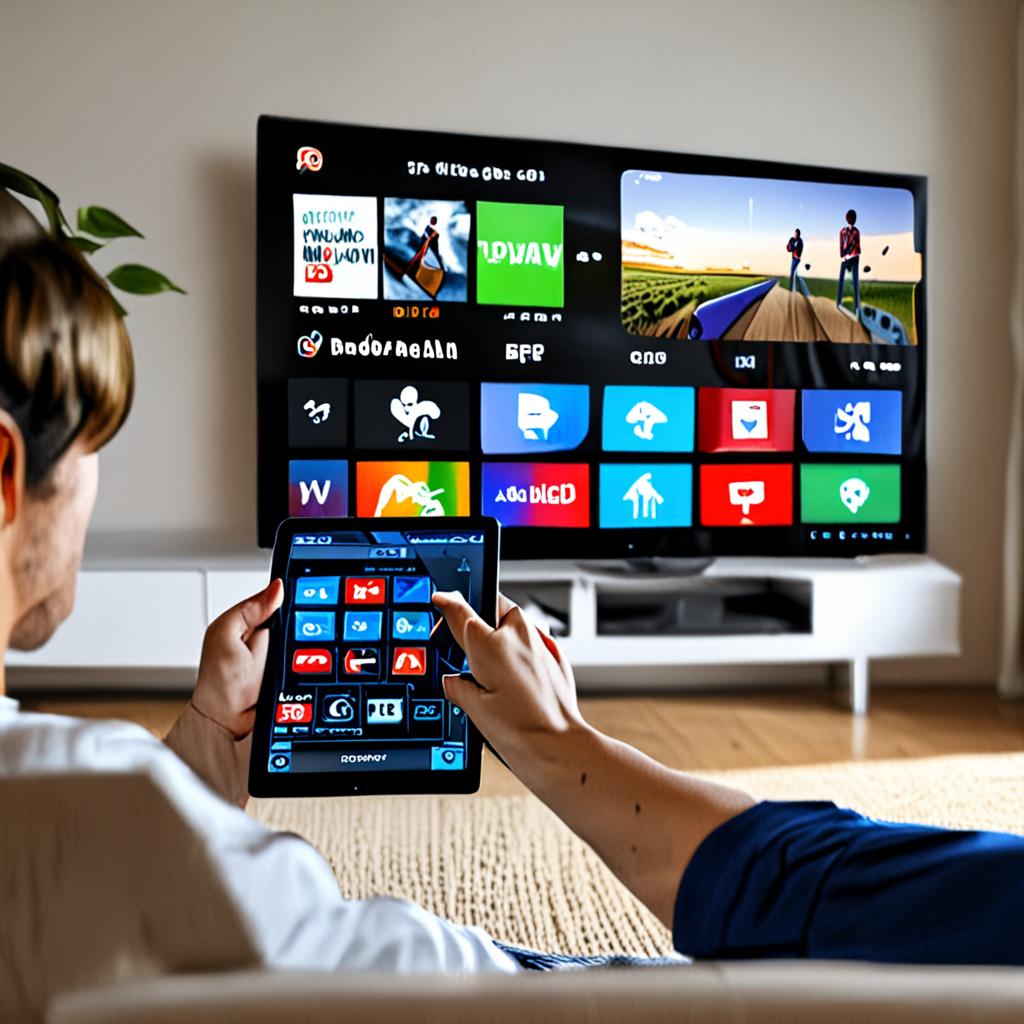
Once your playlist loads, iBO Player displays a category-based interface. On Apple TV, the main screen shows large tiles for Live TV, Movies, and Series. Navigation uses the Siri Remote's touch surface for scrolling and clicking. On iPhone and iPad, the interface adapts to touch input with swipe gestures for category browsing and tap-to-play for channel selection.
The Live TV section organizes channels by the group-title categories from your playlist. With IPTVPlaylist's 29,500+ channels, you will see categories for each country and content type. Scrolling through categories is smooth on Apple TV and iOS devices thanks to Apple's hardware acceleration. Channel logos appear alongside channel names when the playlist includes tvg-logo URLs, which IPTVPlaylist provides for all channels.
The EPG (Electronic Program Guide) is accessible from within the Live TV section. If connected via Xtream Codes, EPG data loads automatically. For M3U connections, the EPG URL may need to be entered through the web portal during playlist setup. The guide displays current and upcoming programs for each channel, with the ability to scroll forward in time to see the schedule.
Optimizing Playback on Apple Devices
Apple TV models from 2021 onward (Apple TV 4K with A12 chip or newer) handle 4K IPTV streams without issues. The hardware decoder supports H.264, H.265 (HEVC), and VP9 codecs. For optimal quality, ensure your Apple TV is set to 4K output in Settings > Video and Audio, and that your HDMI cable supports HDMI 2.0 or later.
On iPhone and iPad, iBO Player supports Picture-in-Picture (PiP) mode on iOS 15 and later. During playback, swipe up from the bottom or press the home button to minimize the video to a floating PiP window. This lets you browse other apps while watching IPTV. PiP works in both landscape and portrait orientations.
AirPlay support allows you to stream from iBO Player on your iPhone or iPad to an Apple TV or AirPlay-compatible smart TV. Swipe into Control Center and tap Screen Mirroring, then select your Apple TV. The IPTV stream plays on the TV while your phone serves as the remote control. Note that AirPlay introduces slight latency (100-300ms) compared to running iBO Player directly on the Apple TV.
Troubleshooting iBO Player Issues
The most common issue is playlist not loading after entering credentials on the web portal. This usually means the device ID was entered incorrectly. Re-check the Device ID displayed in the app, paying attention to any zeros versus the letter O, and ones versus the letter l. Re-enter the ID on the portal and try again.
Playback errors on specific channels are usually codec-related. iBO Player relies on Apple's AVFoundation framework, which does not support all codecs that Android players handle. Channels encoded in less common formats may not play. There is no workaround within the app for unsupported codecs. Most mainstream channels use H.264 or H.265, both of which are fully supported.
App crashes during playlist loading can occur with very large playlists. If the app crashes when loading IPTVPlaylist's full 29,500+ channel lineup, try using the Xtream Codes connection method, which loads categories and channels on demand rather than all at once. This reduces memory usage significantly compared to loading an entire M3U file into memory.
If the app is removed from the App Store (Apple periodically removes IPTV apps), you can reinstall it from your purchase history as long as your Apple ID retains the purchase record. Go to App Store > Account > Purchased and search for iBO Player. If it appears in your purchased list, you can download it even if it is no longer publicly listed.
Alternative IPTV Players for Apple Devices
If iBO Player does not meet your needs or is unavailable on the App Store, alternatives include IPTVX (supports M3U and Xtream Codes), GSE Smart IPTV (M3U and JSON playlist support), and iPlayTV (Apple TV-optimized interface). Each has trade-offs in features, stability, and App Store availability. Our setup guides at /setup-guide cover multiple iOS and tvOS players.
Getting Started with IPTVPlaylist on iBO Player
IPTVPlaylist provides both M3U URLs and Xtream Codes API credentials, both compatible with iBO Player on all Apple platforms. The subscription includes 29,500+ live channels, 115,000+ VOD titles, full EPG data, and channel logos optimized for Retina displays on Apple devices.
Visit /pricing to choose your subscription plan. Browse the complete channel lineup at /channel-list. For setup instructions across all devices, see /setup-guide. Explore all included features at /features.
Ready to Start Streaming?
Get instant access to 20,000+ live channels, 4K streaming, and 80,000+ movies and series.
View Plans & Pricing